How To Leave a Google Review on Any Device
Follow these simple steps to leave a Google review on your phone or computer. You'll also learn how to post without Gmail and keep your full name private.

KEY TAKEAWAYS
- To leave a Google review on a smartphone, open Google Maps, search the business, tap "Reviews", choose a star rating, and add your written review and photos, then tap Post.
- On a desktop, sign in to Google Maps, search the business, then click "'Write a review" to add stars, text, and photos, then click Post.
- You don't need a Gmail address to leave a Google review; you can create an account using any existing email.
- Google doesn't allow anonymous reviews, but you can change your display name so your full name doesn't appear on your reviews.
- Textedly's customer review management software lets businesses collect, manage, and monitor Google reviews from one accessible, easy-to-use dashboard.
When customers have a positive (or negative) experience with a business or when they’re considering purchasing a new product or service, Google reviews are their go-to. In fact, 71% of consumers use Google to read reviews of local businesses, more than any other review site.
Google reviews offer customers the opportunity to share raw, honest feedback on their experiences with businesses and can make or break prospective customers’ decisions. They’re helpful for business owners, too—positive Google reviews encourage engagement, increase conversion rates, and bolster brand reputation. The best part is, they’re easier than ever to collect with review management software.
In this guide, we'll show you how to leave a Google review for a business on any device, and how to edit or delete a review after it's posted.
How To Leave a Google Review on Your Phone
Using your smartphone to leave a Google review for a business is simple. You can post one through the Google Maps app or directly from a Google search, and both options take just a few taps. Here's how each one works:
In the Google Maps App (Android and iPhone)
- Make sure you're signed in to your Google account.
- Open the Google Maps app and type the name of the business you’d like to review into the search bar. If there are multiple locations, make sure to choose the correct one.
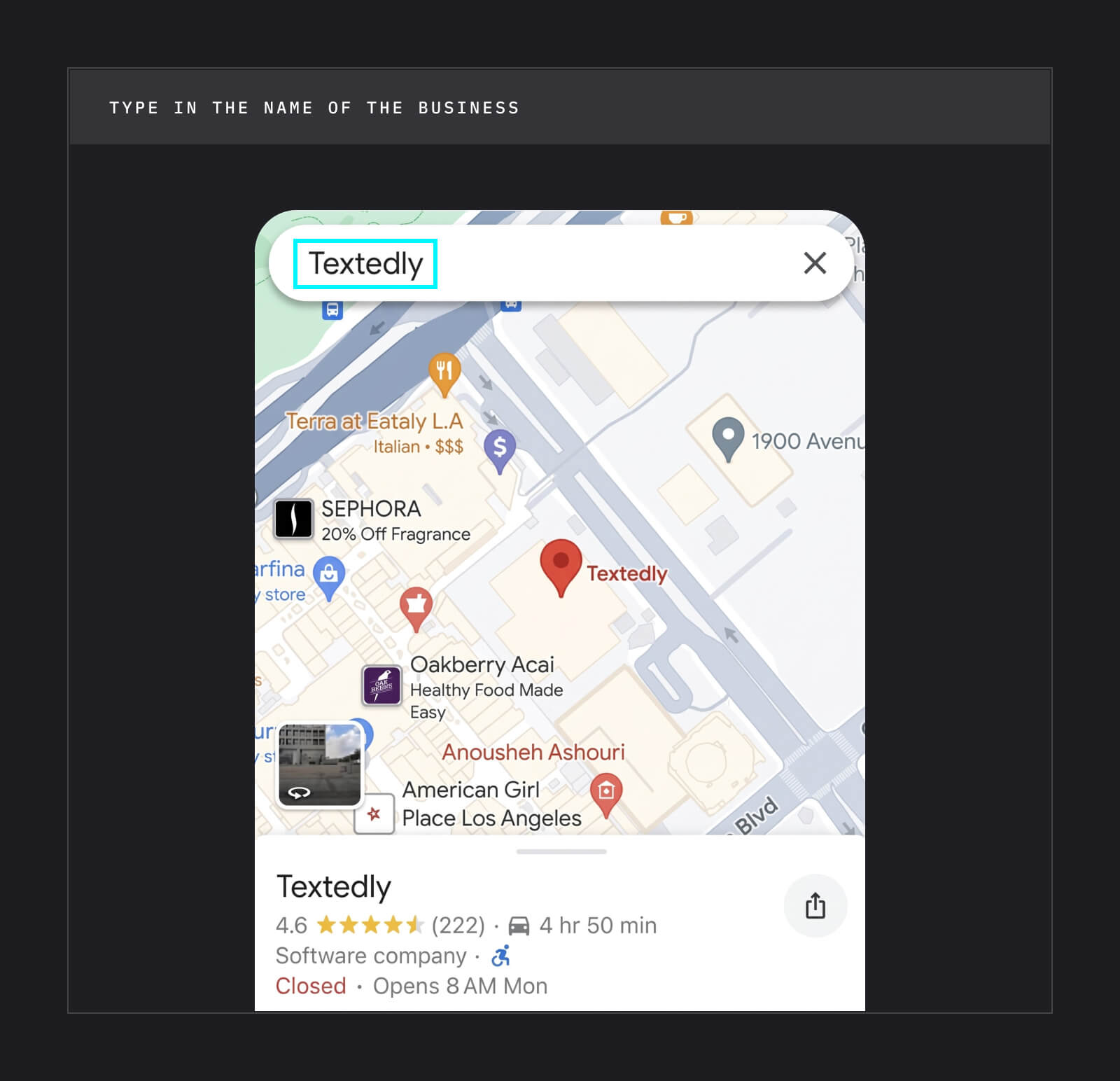
- Tap the business name to open its profile, then tap "Reviews."
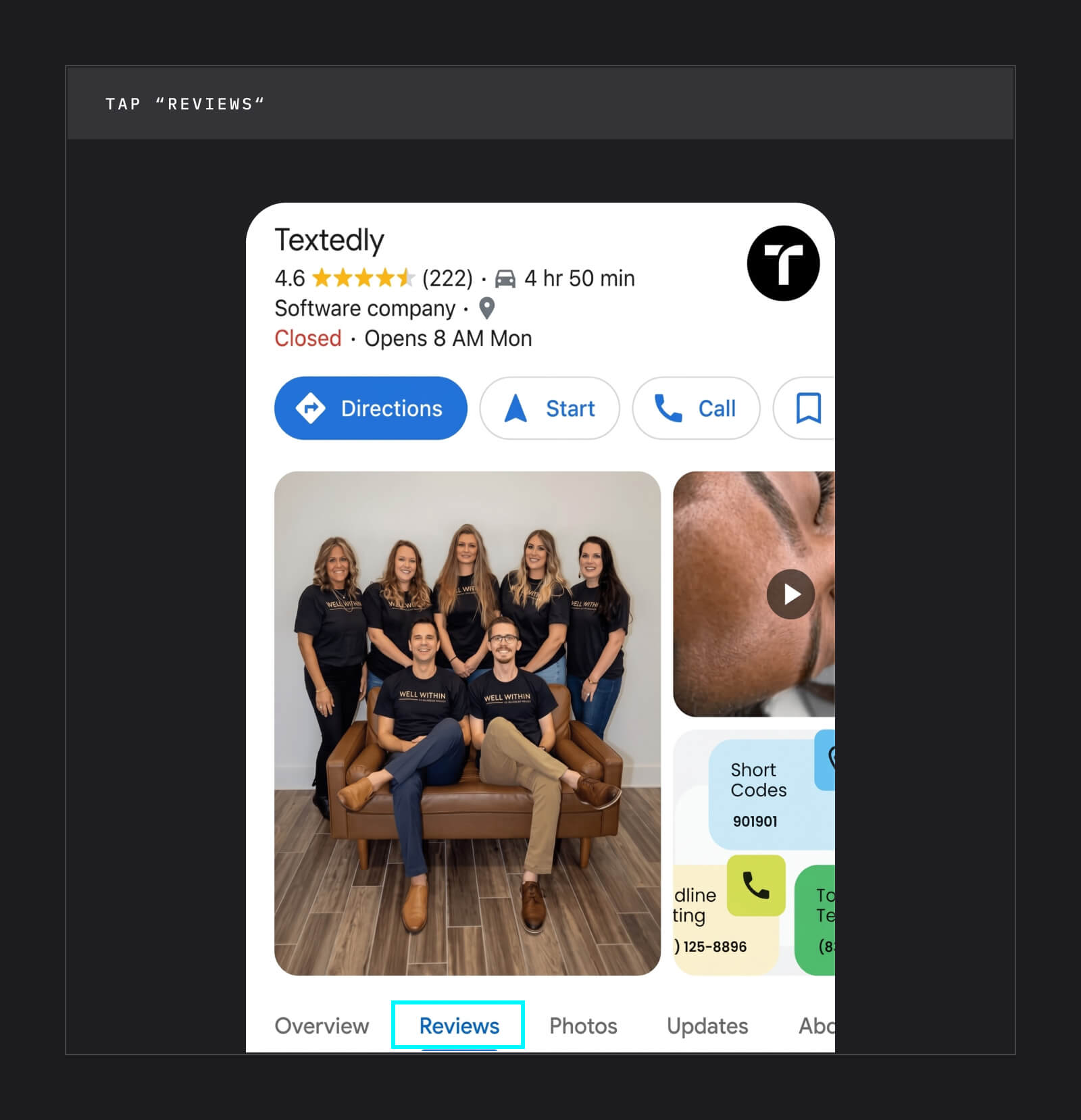
- Under "Rate & review," you will see five empty stars. Choose a star rating out of five.

- You will be prompted to write a review and add photos. Though this is optional, it is encouraged.
- Tap "Post."

From Google Search
If you don't have the Google Maps app, you can leave a review straight from the Google app or your phone's browser:
- Search for the name of the business on Google.
- The business profile will appear at the top of the results. Tap "Reviews."
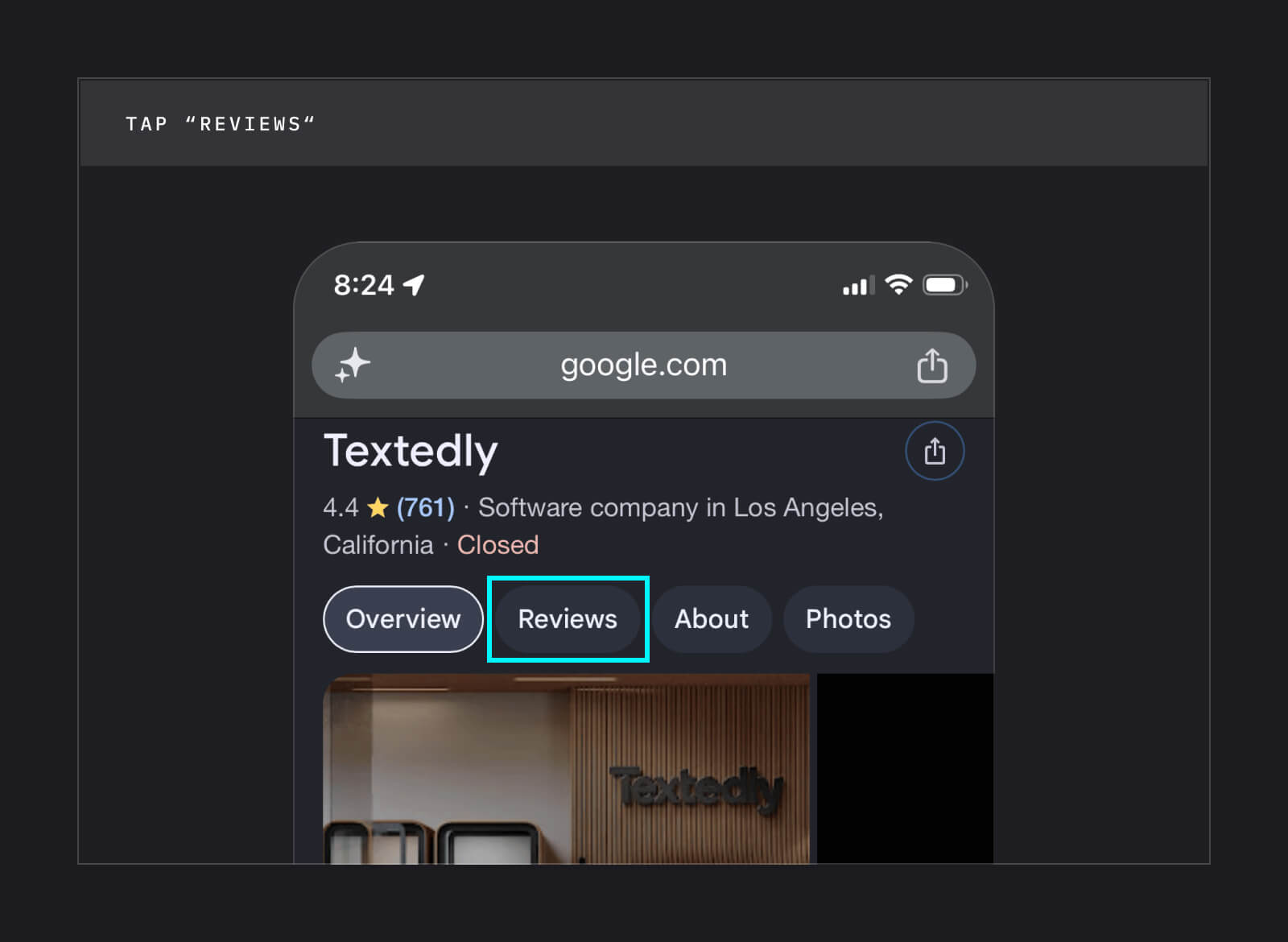
- Choose a star rating, then add your written review and photos.
- Tap "Post."
How To Leave a Google Review on a Computer
The process for leaving a Google review on your computer is similar:
- Open a browser window and navigate to Google Maps. If you’re not already signed in, sign into your Google account.
- Search for the business in the Google Maps search bar.
- On the left side of the page, scroll down and click "Reviews."
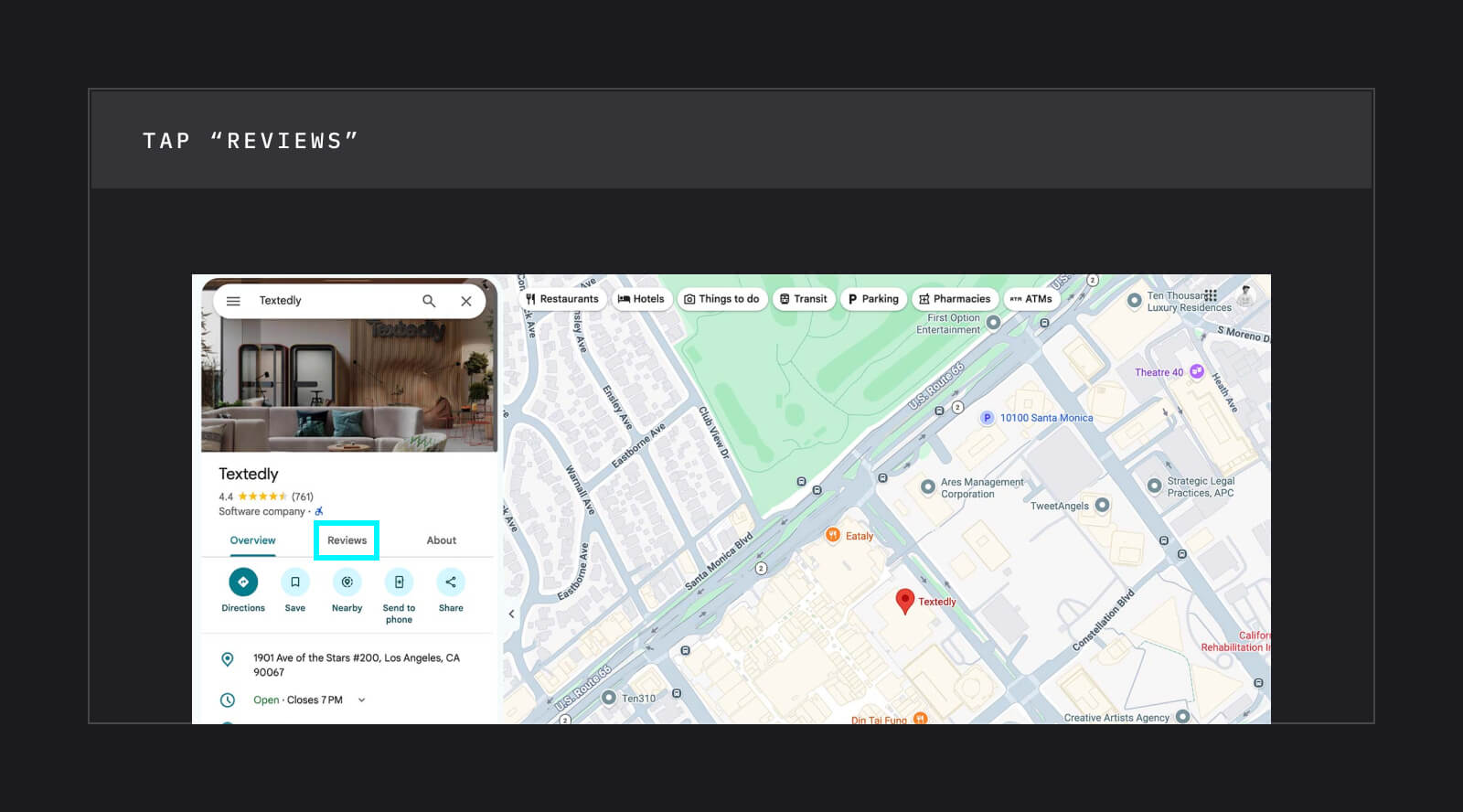
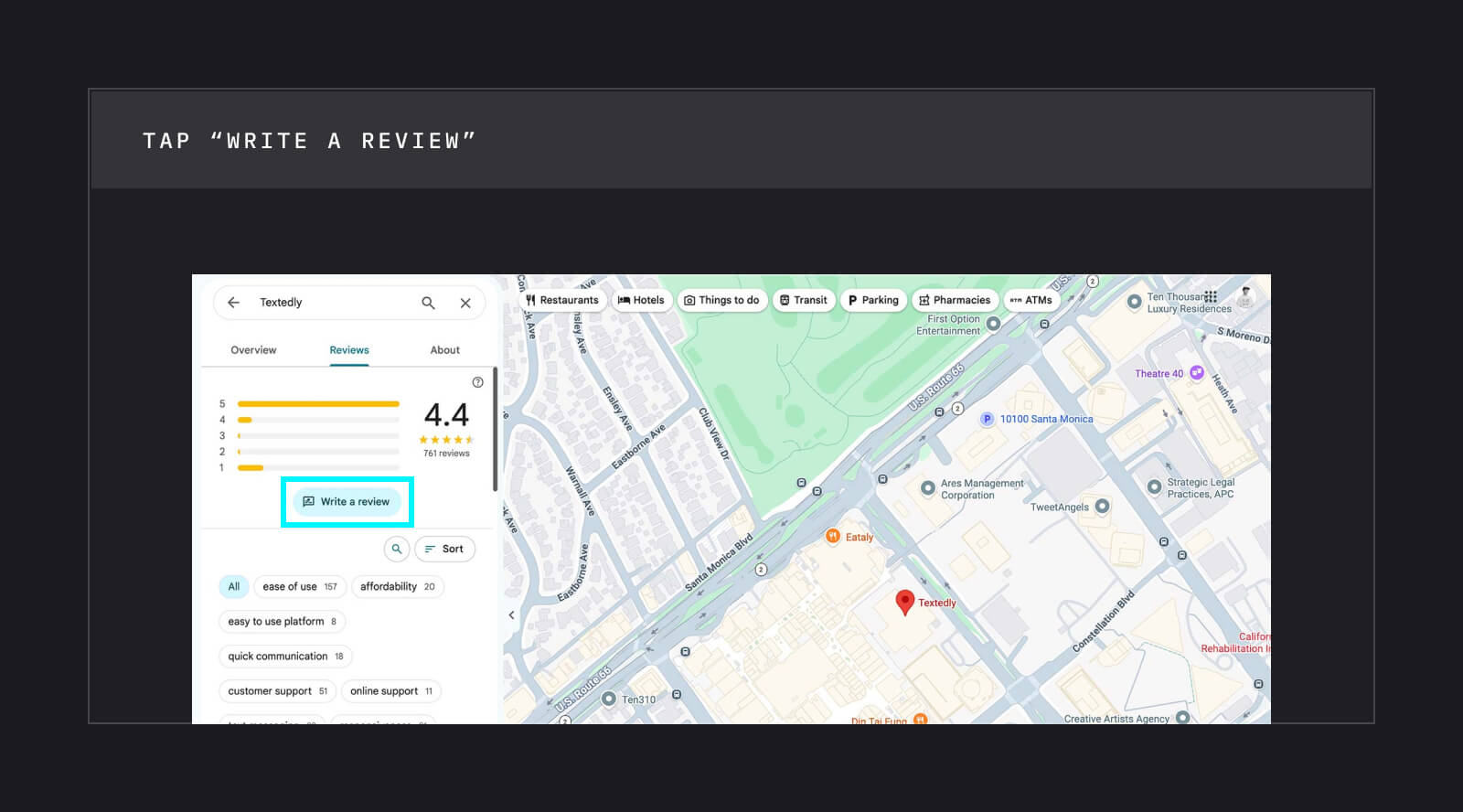
- Click “Write a review.” Here, you’ll be prompted to provide a star rating, a written review, and relevant photos.
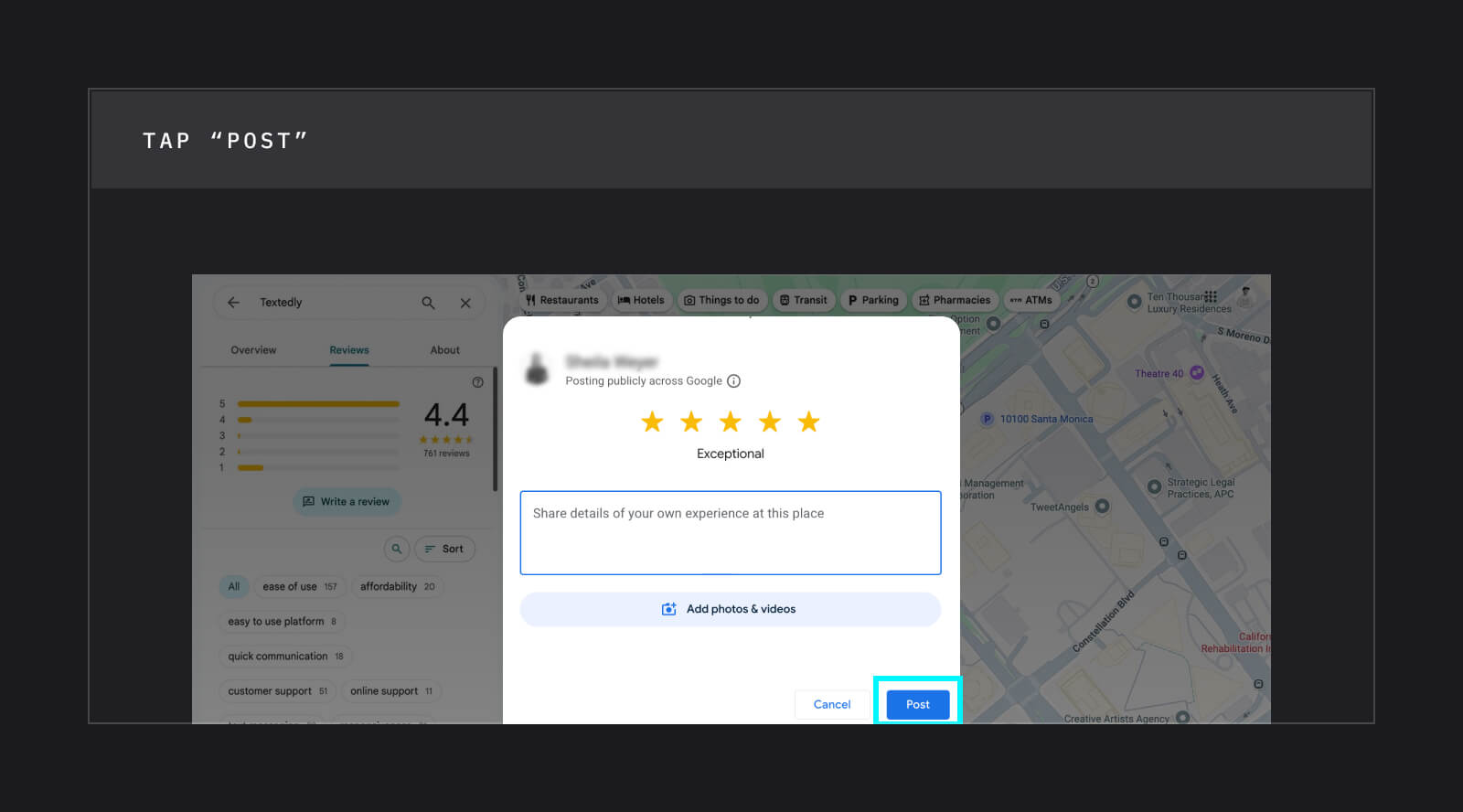
- Click "Post."
Your review will stay up until you remove it, and you can edit or delete it at any time.
How to Leave a Google Review Without Gmail
You do need a Google account to leave a review, but you don't need a Gmail address. You can create a Google account with any email address you like, and it doesn't have to end with "@gmail.com." Here's how:
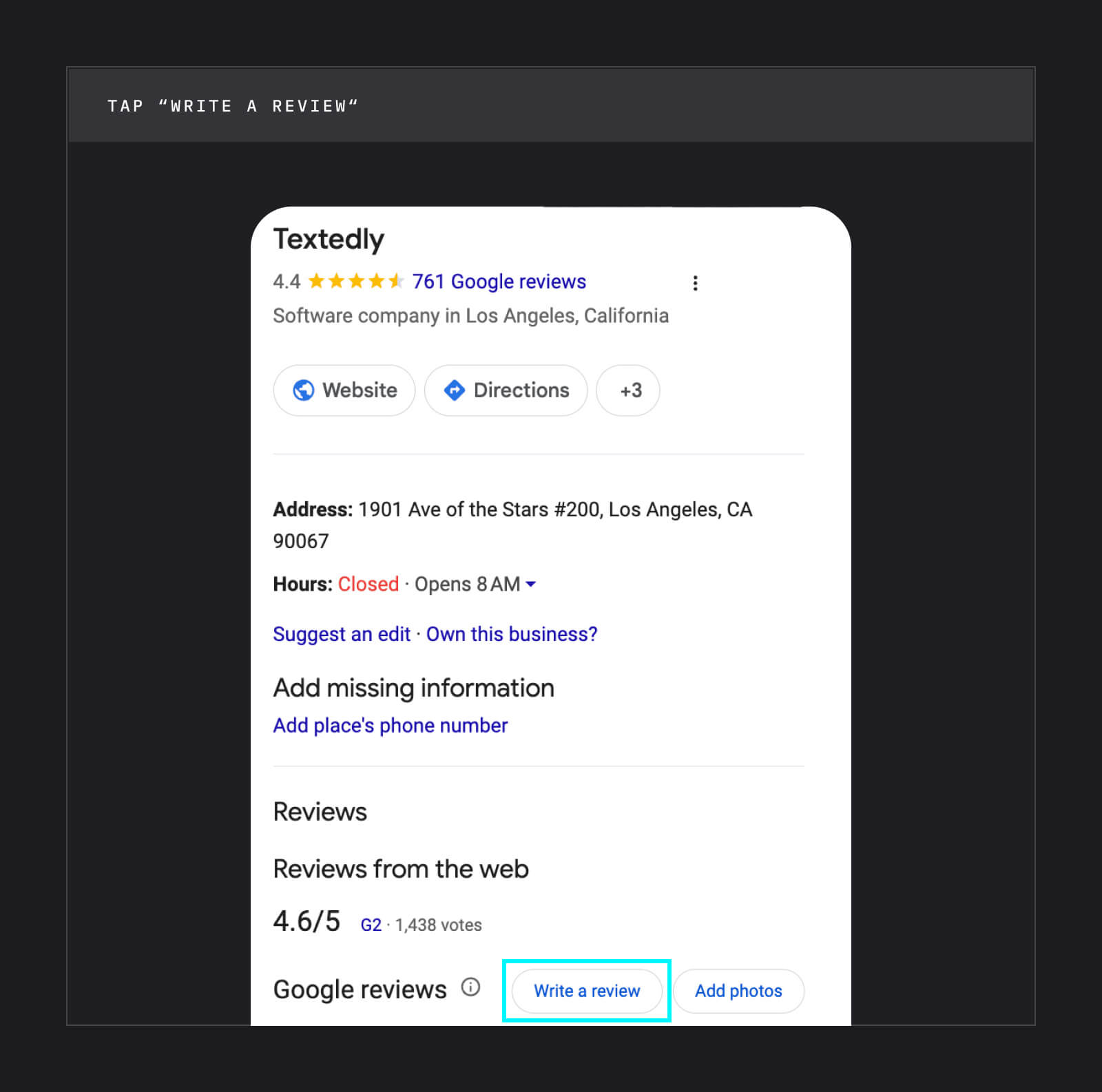
- Search the name of the business you'd like to review in the Google search engine. In the business profile that appears, click “Reviews.” Then click the button that says "Write a review."
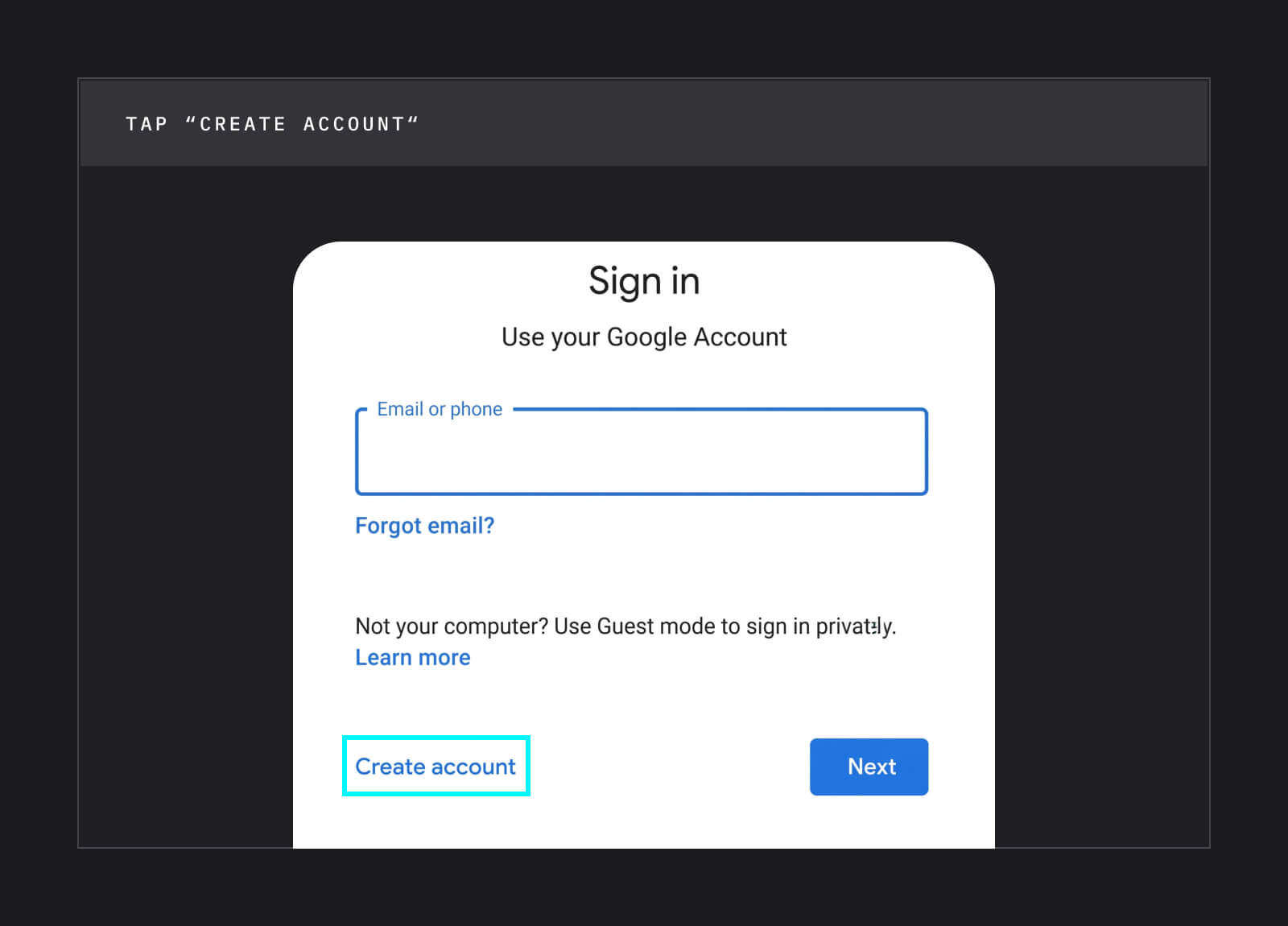
- You'll be prompted to sign in to a Google account. Since you'll be using an existing email address, click the button that says "Create account."
- A dropdown menu will appear. Select “For my personal use.”
- Enter your name, birthday, and gender. When you're asked to create a Gmail address, click "Use your existing email," then type in your email and press "Next."
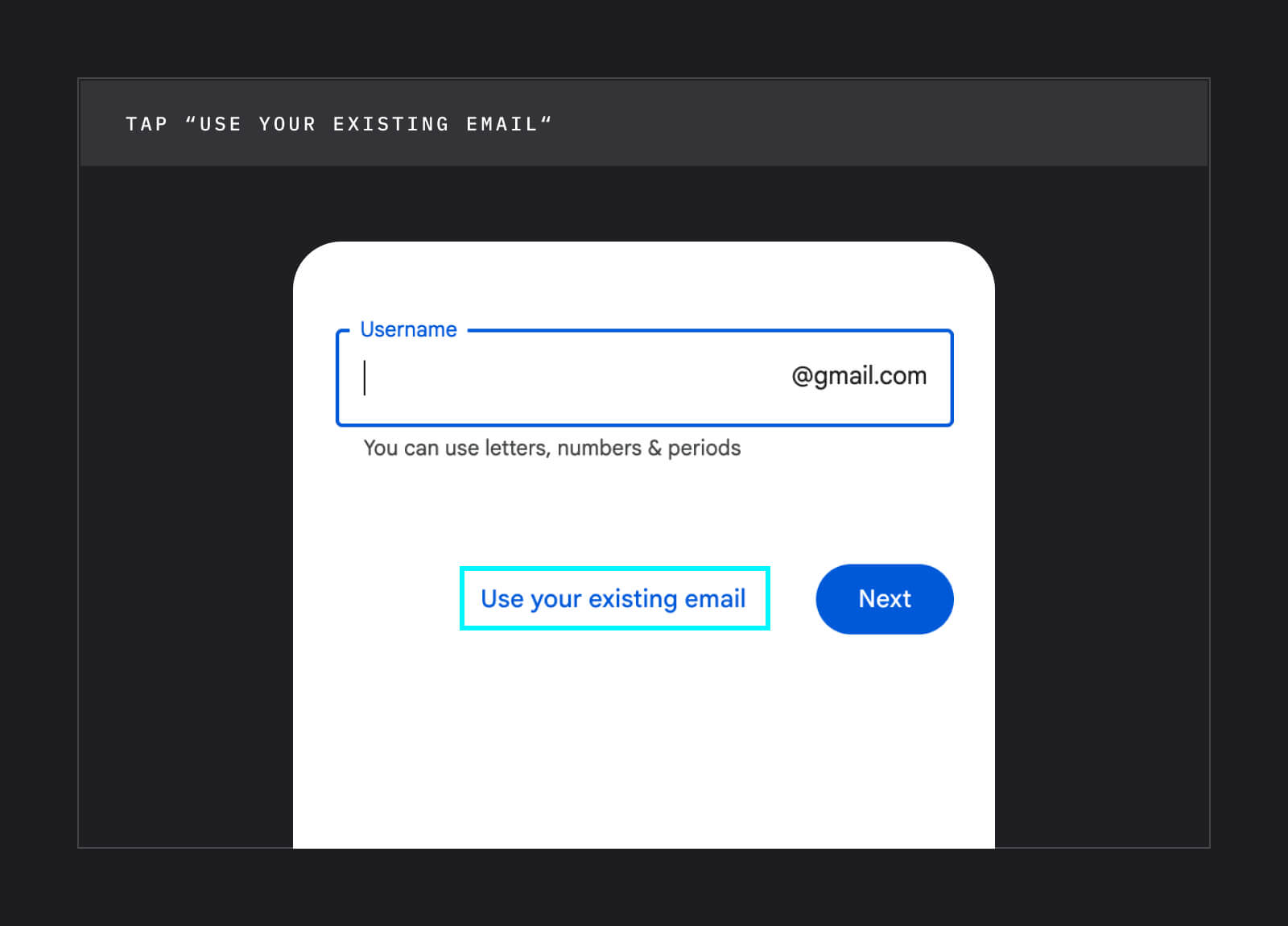
- Create a password and press "Next." Then enter the verification code sent to your email.
Once your account is verified, you'll be taken back to the business profile, where you can rate the business and post your review.
How To Leave an Anonymous Google Review
Google doesn't allow fully anonymous reviews. Every review shows the name and profile picture tied to your Google account, and anyone can tap your profile to see your other reviews. However, if you'd rather keep your identity more private, you can set a custom display name for your Google Maps contributions instead:
- Open the Google Maps app and tap your profile picture in the top right corner.
- Tap "Your profile," then tap "Edit profile."
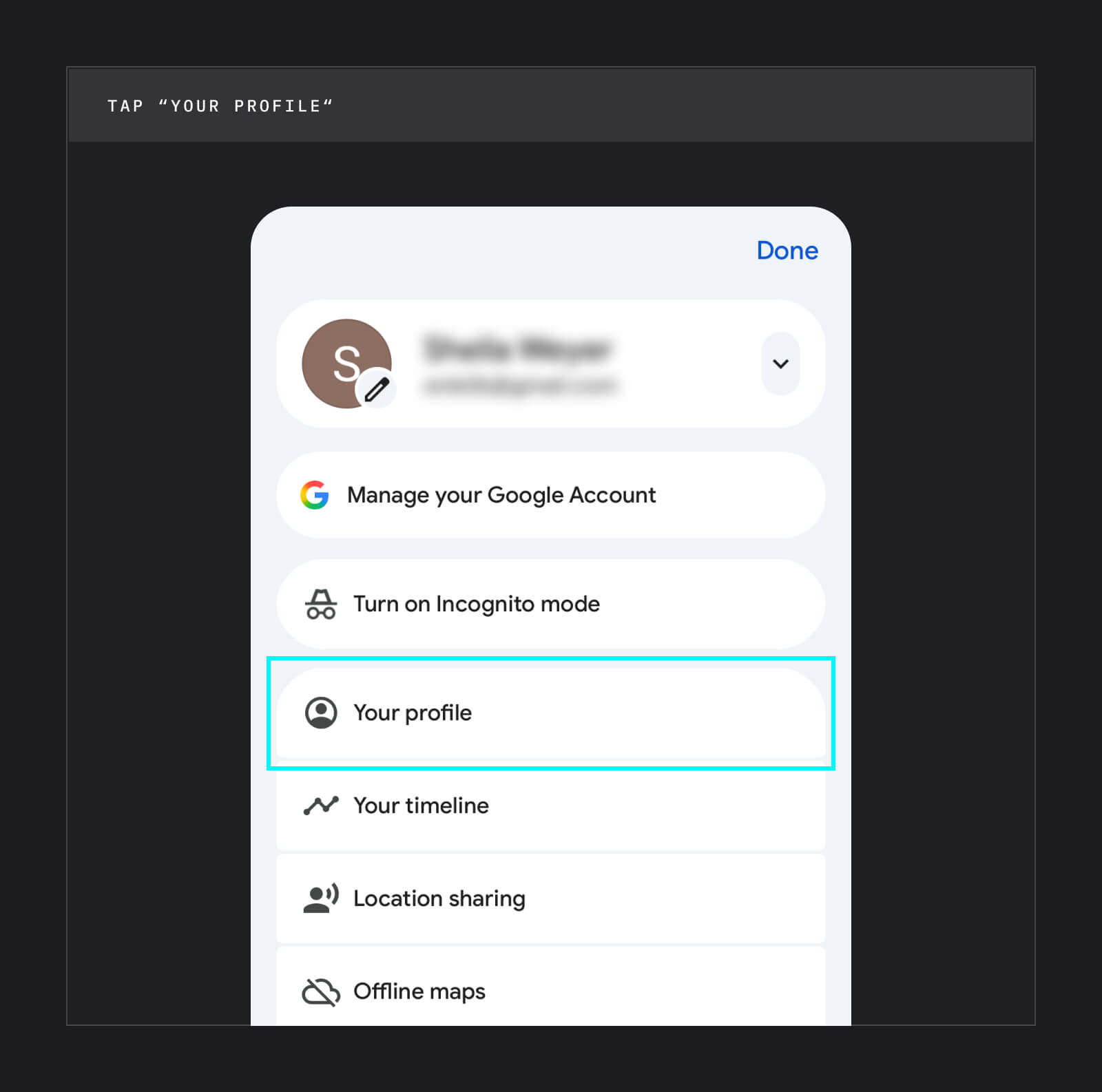
- Turn on the option to use a custom name and profile picture.
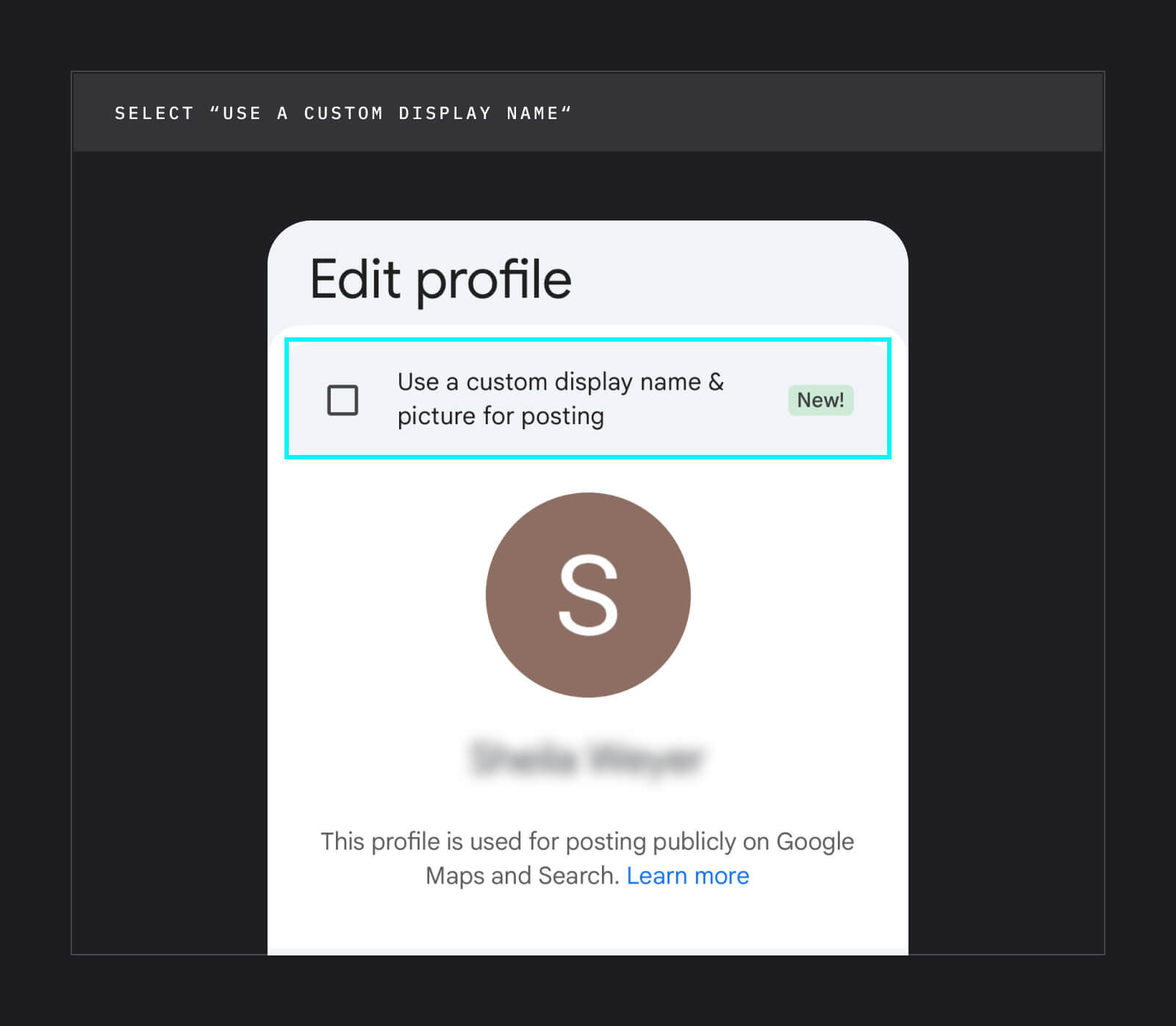
- Enter a nickname or your initials and save your changes.
- Leave your review as usual.
Your custom name will appear on all of your Google reviews, not only new ones. Just keep in mind that obviously fake names may not seem credible to other users and can make your review more likely to get flagged as spam.
For extra privacy, turn on a restricted profile so other users can't browse your review history, and leave any personal details out of the review itself.
Tips for Writing a Helpful Google Review
Knowing how to write a Google review comes down to a few key ingredients. Consider the following tips:
- Be respectful. Try to remain as objective as possible when leaving a review—even if you’re leaving a review for a business you didn’t have a positive experience with. Criticism is acceptable as long as it’s constructive. And, of course, make sure to avoid profanity or hurtful language.
- Be authentic. Include both the positive and negative aspects of your experience. You also shouldn't review a business you work for (or a competitor), or accept discounts or freebies in exchange for a review. Both go against Google's content policy.
- Be specific. What did you like about your experience? What did you not like? Is there a specific product or service you’re referring to in your review? Make sure to include all necessary details in your review.
- Add photos. Photos make your review more credible and help future customers see what to expect.
- Avoid personal information. Google reviews are a place to share your experience with a business, not a place to share personal or private information. Keep your identity as safe and secure as possible, as your review will be available to the public.
- Skip links, promo codes, and contact info. Google often filters out reviews with URLs or promotional content, which can keep your review from appearing at all.
- Proofread your review before you submit. Excessive punctuation or poor spelling and grammar may come across as spammy. A three- to five-sentence paragraph is a great length for a review.
- Avoid unnecessary commentary. Some businesses may become the subject of public debate or conversation, but your review should only include details about your firsthand experience with businesses.
Here's an example of what a review that follows these tips might look like:
“I brought my car in for a brake replacement and was quoted $380, which matched the final bill. The front desk texted me when it was ready, about an hour earlier than they estimated. The waiting area was a little cramped, but the staff was friendly and walked me through what they replaced. I'll be back for my next oil change.”
If you find yourself leaving reviews often, Google has a program that recognizes people who share helpful feedback. Google Local Guides is a free program that rewards people who contribute to Google Maps. You earn points for writing reviews, adding photos, and suggesting edits to business listings, and those points help you move up levels and earn badges on your profile.
How To Edit or Delete Your Google Review
Here's how to delete a Google review or edit it at any time. These steps are also the easiest way to see every review you've written:
On a computer:
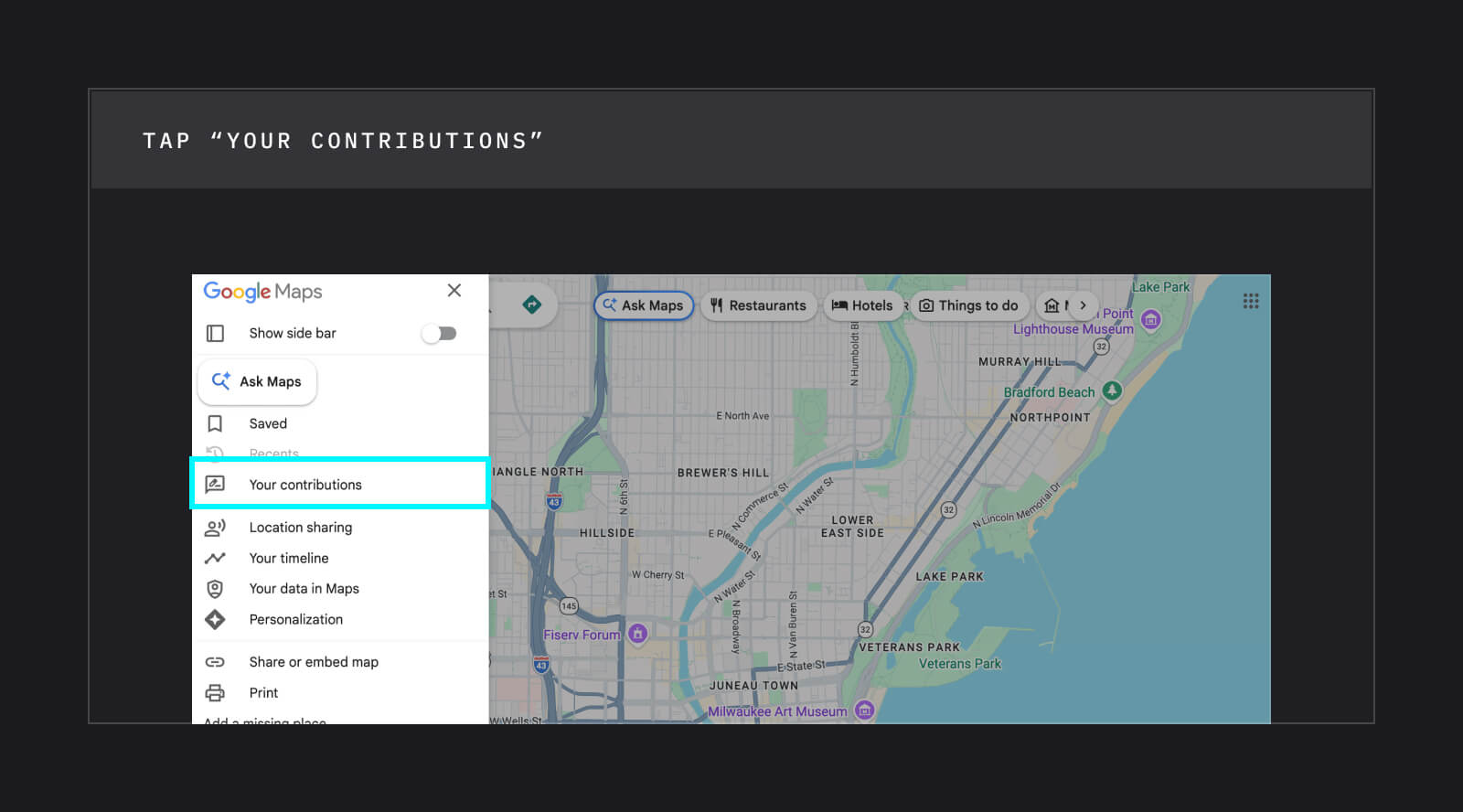
- Open Google Maps.
- Click the three horizontal lines at the top left of the screen.
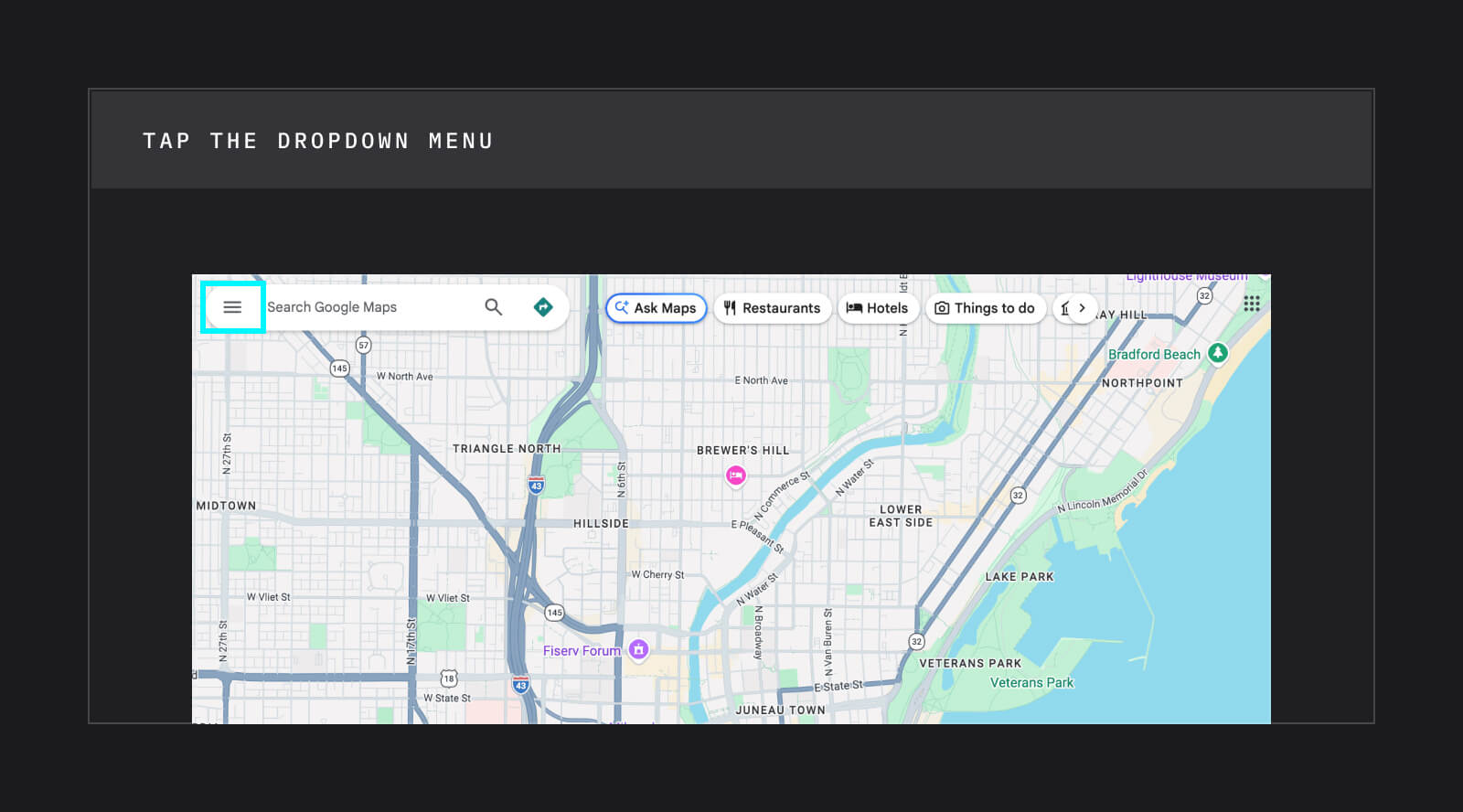
- Click "Your contributions."
- Click "Reviews."
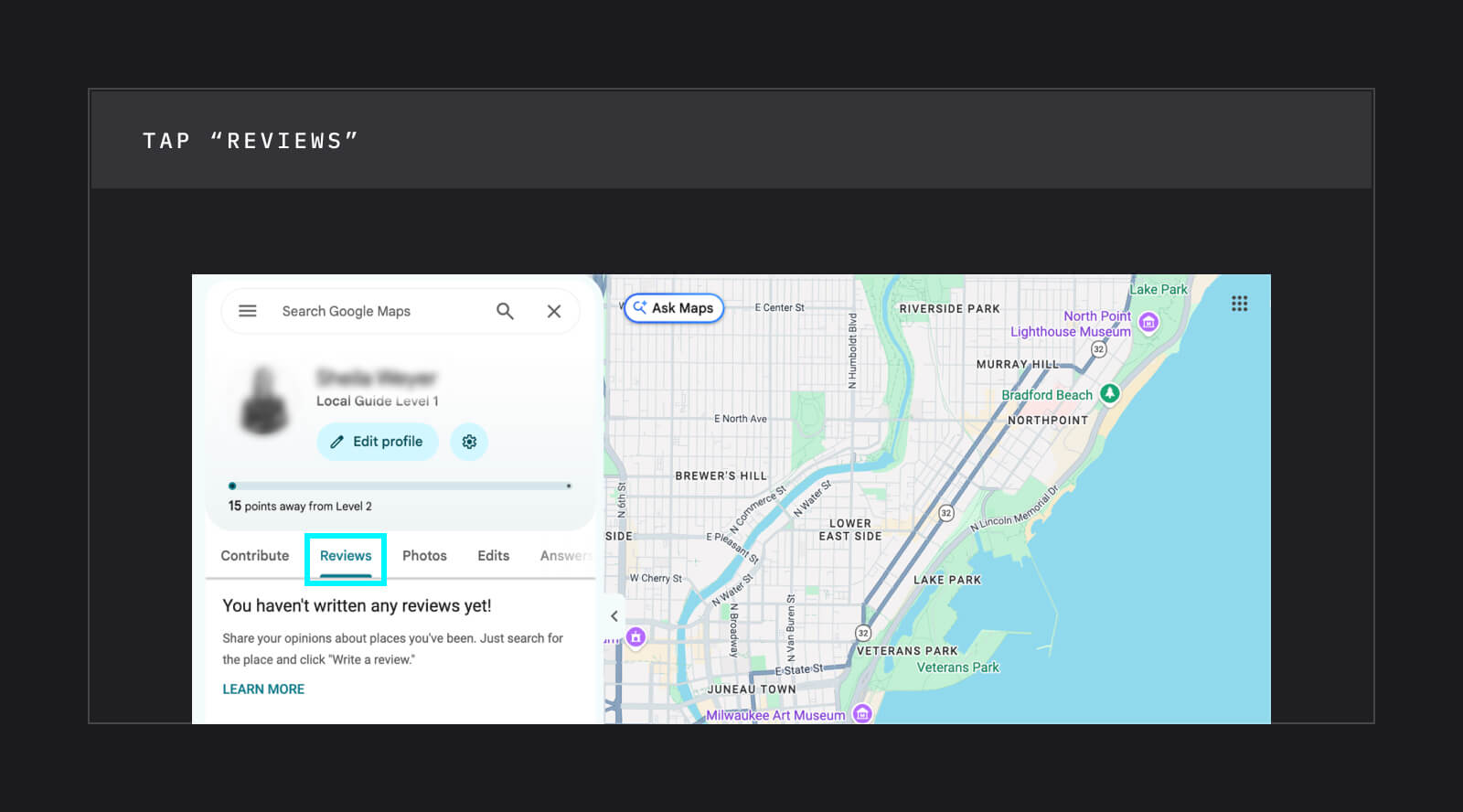
- Next to the review you want to edit or delete, click the three dots.
- Select "Edit review" or "Delete review" and follow the on-screen steps.
In the Google Maps app:
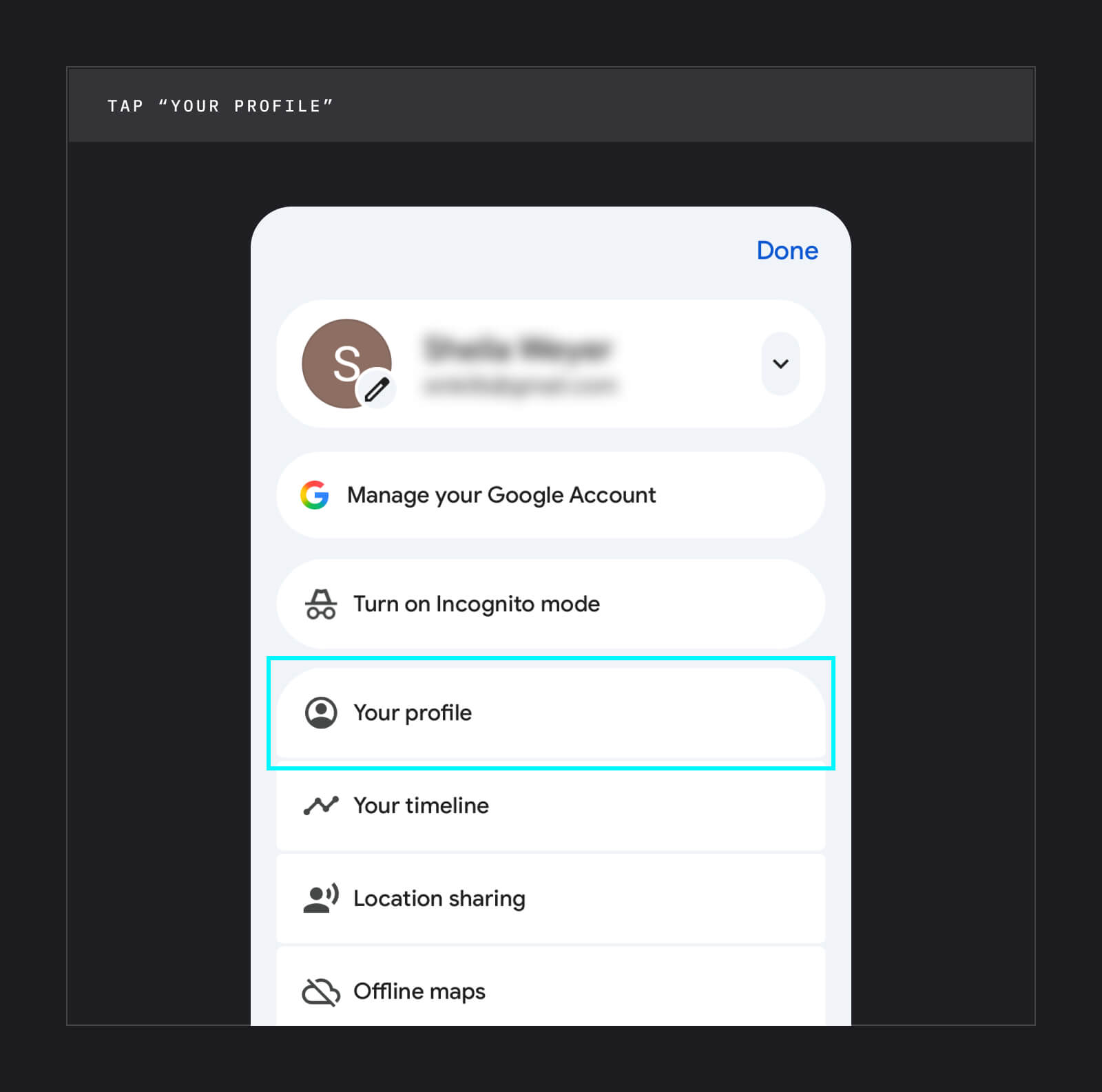
- Open the Google Maps app and tap your profile picture in the top right corner.
- Tap "Your profile" to go to your reviews.
- Next to the review you want to edit or delete, tap the three dots.
- Select "Edit review" or "Delete review" and follow the on-screen steps.

If you edit a review, it will show the date of your most recent edit instead of the original post date.
Google Review FAQs
Now that you know the basics, let’s dive a little deeper with these frequently asked questions about leaving a Google review:
How Long Does it Take for Reviews to Appear?
Google reviews are filtered and monitored for spam and suspicious activity. Sometimes this process is instant—in these cases, you’ll see your review right away.
If you don’t see your review as soon as you submit it, check back within 48 hours. If your review doesn’t appear within a 48-hour timeframe, Google’s moderation system may have filtered it. A few common reasons include:
- You weren't signed in to your Google account when you posted.
- Your review included links, promo codes, or contact info.
- Your Google account is brand new and has no other activity.
Can You Tell How Many People Have Seen Your Review?
Yes—you can tell how many people have seen your review. Here’s how to access your view count on your smartphone:
- Open the Google Maps app.
- Tap "+Contribute" at the bottom of your screen.
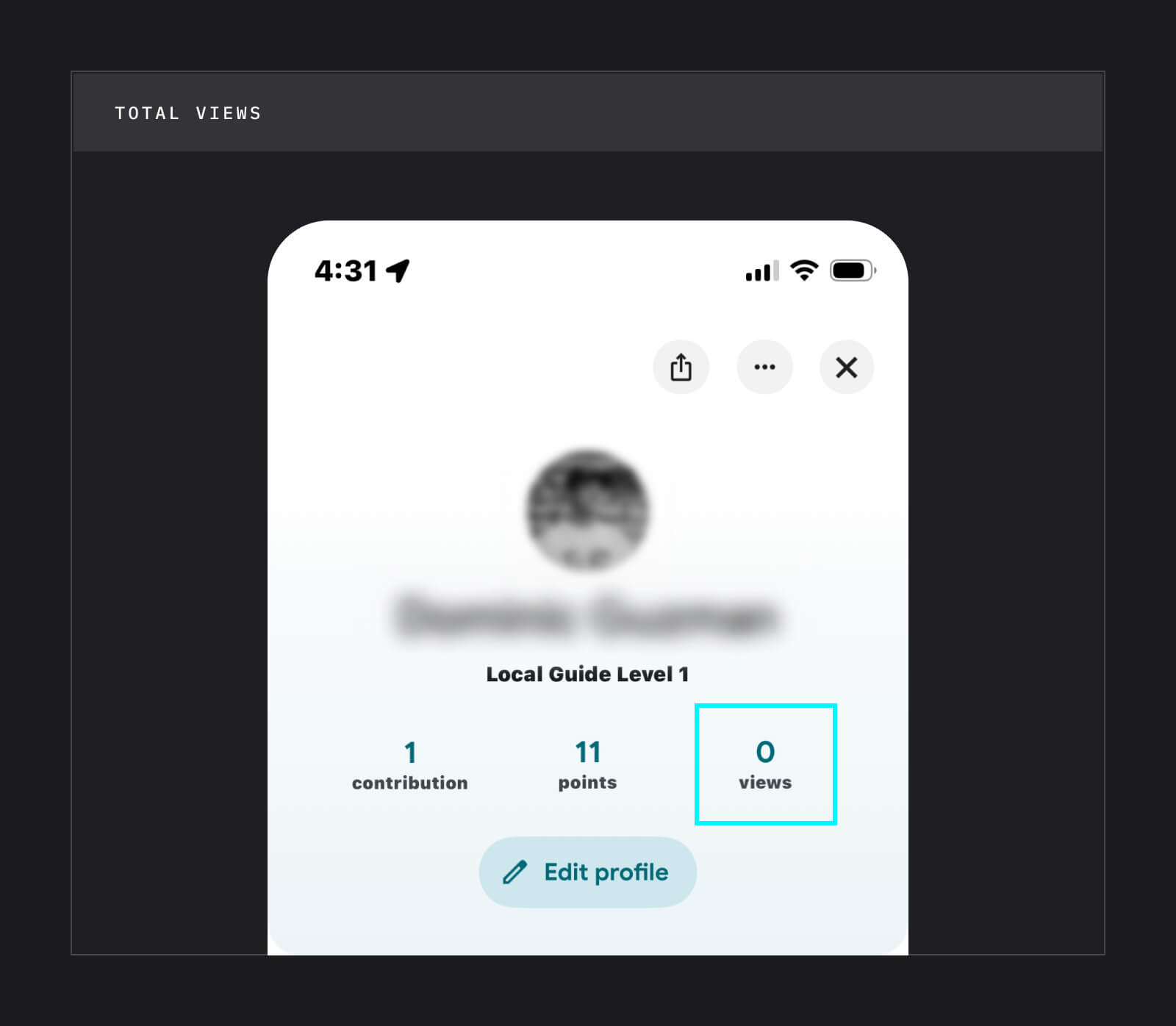
- Tap your name at the top of the screen to open your profile.
- At the top of your profile, you'll see your total views, along with your number of contributions and points.
Can I Leave More Than One Google Review?
Unfortunately, you can only have one active review per business at a time. But, if you'd like your feedback to reflect a more recent experience, you can edit your existing review or delete it and post a new one.
Can a Business Delete Your Google Review?
No. Only Google can remove a review, and only if it breaks Google's content policies. Business owners can reply to reviews or report ones they believe violate those policies.
Get More Google Reviews With Textedly
Knowing how to leave a Google review gives you an easy way to provide helpful feedback, allow future customers to make wise decisions before purchasing a product or service, and help your favorite brands gain new customers.
For business owners, those same reviews can be a valuable part of your digital marketing strategy, since each positive review builds social proof and strengthens your brand's reputation. To get more of them, it helps to request a review while the experience is still fresh. With Textedly, you can automatically text customers a Google review link right after a purchase or appointment, so all they have to do is tap and rate.
Create an account (no credit card required) to get started.
Related resources:
Related Articles

32 Proven Review Request Text Templates for Businesses

Paying for Google Reviews is a No-Go: 10 Better Strategies

How to Reply to Negative Reviews on Google: Examples and Tips

30 Positive Review Response Examples for Businesses


Your Customers Are Waiting
Send your first text in minutes—no contracts, no credit card, no hassle.