Can You Schedule a Text? Yes, But You Need the Right Platform
Yes, you can schedule a text on iPhone, Android, or through an SMS platform. Here’s how and why scheduled business texts sometimes send late.

KEY TAKEAWAYS
- Yes, you can schedule a text; Apple’s Send Later schedules from any Messages conversation, and Google Messages schedules when you press and hold Send.
- Default messaging apps schedule one message per conversation, though, so businesses can’t use them at scale.
- Your number’s registration status and your message content decide if your scheduled text sends at all.
- Factors such as number type also affect delivery times, with 10DLC numbers sending up to 65x faster than traditional one-on-one texting.
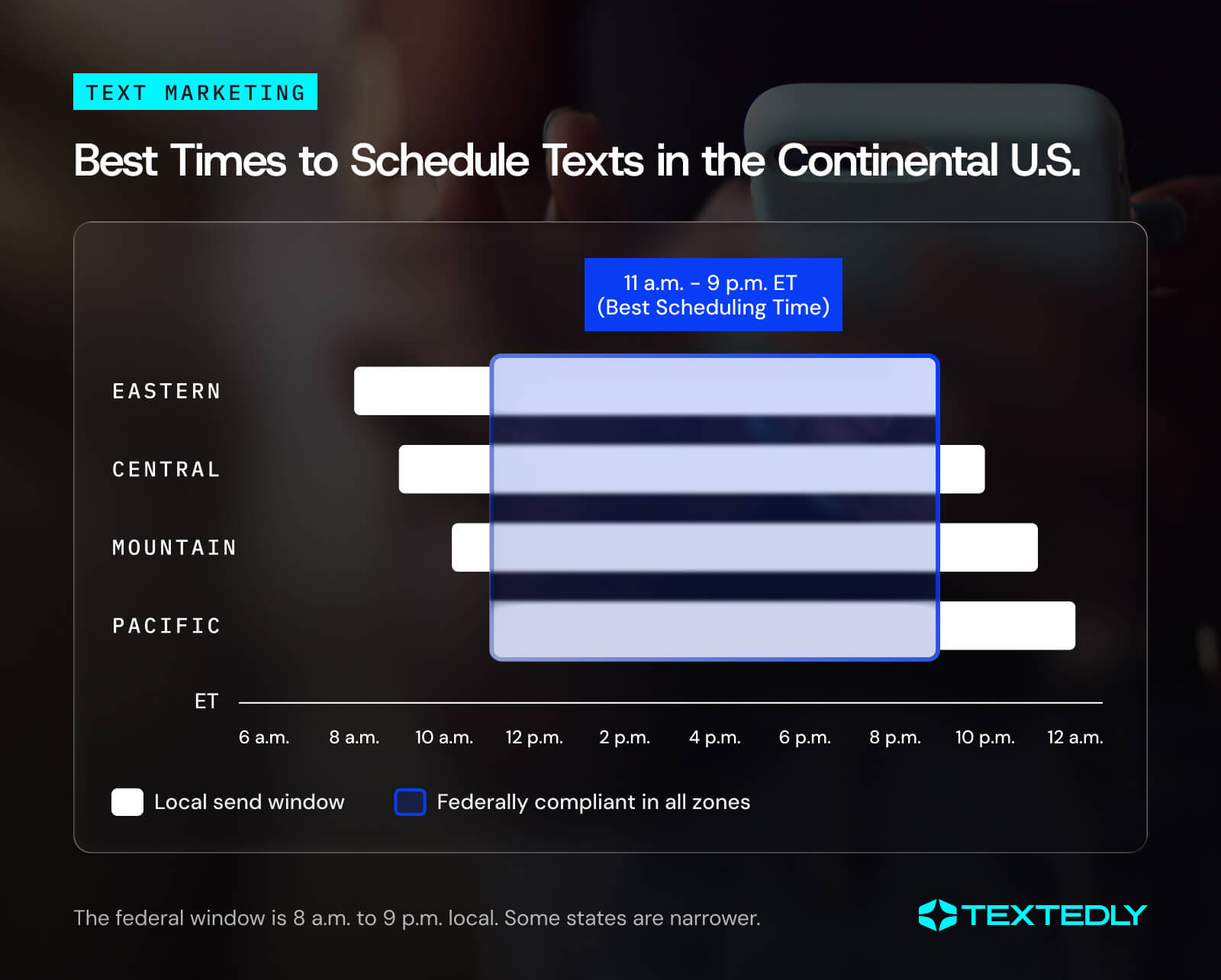
- Federal law only allows messages between 8 a.m. and 9 p.m. in the recipient’s local time, with state-by-state considerations.
If you’re asking, “Can I schedule a text?” you’re already past the easy part. The harder question for a business is whether that message actually sends at your chosen time. One message to one person usually sends at the time you schedule. But quite a few factors can affect the actual send time of an SMS campaign sent to a customer list.
Below, you’ll find how to send a delayed text from a phone or an SMS platform. You’ll also learn the ways that businesses can optimize their messages’ actual delivery times.
Can You Schedule a Text on iPhone?
Yes. iPhone has scheduling built into the Messages app through a feature called Send Later, and setting one up takes four steps:
- Open Messages and go to the conversation you want, or start a new one.
- Tap the Add button, then tap Send Later.
- Select the time above the text field, then choose the time you want.
- Type your message, then tap Send.
You’ll know your message is scheduled when the text field border becomes dashed and the send time appears above the message.
Can You Schedule a Text on Android?
Yes. Google Messages has built-in scheduling, and it works on Android 7.0 and up. Here’s how to schedule a text on Android:
- Open Google Messages.
- Go to the conversation where you want to schedule your message, or start a new one.
- Type your message.
- Press and hold Send to open the schedule send options.
- Pick one of the suggested times, or choose your own date and time.
- Tap Send.
A “Scheduled message” label appears at the top of a scheduled text in an Android conversation. Tap the schedule icon to change the send time, edit the message content, or delete the message.
Where Device Scheduling Doesn’t Hold Up for Business Use
Standard mobile messaging apps are built for one person messaging one person from one phone. Try messaging a large list for a business with one of those apps, and you’ll come across these obstacles:
- You can’t register for compliant mass texting. Messaging a customer list means getting your number registered through A2P 10DLC first, and a personal phone has no way to do that.
- One recipient per scheduled send. Both apps schedule one message for one conversation. Need to reach a team of 100 before their shift? You’d have to type all 100 messages, one at a time.
- No recurring sends. Neither app can repeat a scheduled text, meaning you’d need to rewrite your message every time you’d like to send out a weekly shift alert or a monthly billing reminder. You need a platform that has recurring text messages.
- No one else can see what’s queued. Scheduled messages stay on one person’s phone, so teammates can’t check the scheduled messages on deck. So when the designated texter gets sick, for example, nobody else can step in.
- No audit trail. You get no record of what was sent, when, or to whom. That lack of documentation becomes a real problem in any industry with strict information security regulations.
How to Schedule an SMS in a Tool Like Textedly
Every one of the above problems has the same fix: get off your phone and onto an SMS platform built for business. SMS scheduling software can come with registration, contact lists, recurring sends, and team access already built in. These steps show how to schedule an SMS message with Textedly, but the flow looks similar on any SMS platform.
1. Register Your Business and Number
Before you send a timed text at scale, you’ll need to register your business and the campaign you’re sending for A2P 10DLC through The Campaign Registry. Textedly will handle most of the submission process for you after you provide your business details and five sample messages showing what you plan to send. It can take days to weeks for your registration to clear.
2. Build and Segment Your Contact List
Once you have a registered number, you can import your contact list as a CSV file.
Match the headers to the ones listed on the Add Contact > Contact List page. You only have to fill out the phone column to add a contact. But if you add as much information as you can, you’ll have better context for organizing your contacts with tags and keywords.
Every imported contact gets a keyword, so you’ll need at least one before you can upload anything. Think of them as top-level folders for contact organization. Tags handle finer details, like subgroups within a single keyword, or a group pulled from across several keywords.
3. Write Your Message
Now it’s time to start writing the text you want to schedule. Add personalization tags wherever you want to populate recipient details. For example, type %firstname%, and Amanda's message opens with "Hi, Amanda."
Watch the character counter, because it’s really a cost counter: 160 characters is one credit, 306 is two, and every 153 after that adds another, and that includes your opt-out footer.
4. Set and Confirm the Send Time
After you compose your message, choose Send Later to schedule it. Check your contact list’s time zones before you lock in a time. A 9 a.m. send on the East Coast comes in at 6 a.m. for West Coast contacts. That’s too early to be legal, let alone welcome. If your list spans too many zones for a single send, segment it and schedule a separate send for each.
Here’s an overview of the best send times for compliance in the continental United States. Check the recipient’s state laws to see what time window their state requires.
5. Schedule Your Text
Give your SMS one last look before you hit Send. Double-check the recipients, the content, and the send time, then add it to your schedule. You can edit the message, change its date, or cancel it any time before it goes out.
What Determines If Your Text Sends on Schedule
The send time you pick isn’t a guarantee. Five factors affect when your message arrives in someone’s inbox, and carriers determine four of them before you even open your SMS platform.
Registration Status
While an approved campaign sends normally, an unregistered one doesn’t send at all. Since February 2025, carriers have blocked SMS messages from unregistered 10DLC numbers. And a pending registration delays your sends.
Check your status in your dashboard before scheduling anything time-sensitive, and read Textedly’s SMS compliance guide to see what carriers look for.
Brand Trust Score
When you register your number, your brand will get a trust score through The Campaign Registry. Trust scores affect how many messages per second your number can send. The Campaign Registry bases this score on your proposed messaging plan and brand reputation.
Number Type
Your number type affects delivery timing, too. A registered 10DLC number covers most business sending volumes. If you notice a big difference between your scheduled send times and delivery times, though, you might consider a short code. Short codes provide better throughput for a monthly cost.
List Size Against Throughput
Your list size divided by your messages-per-second rate determines your delivery times. Brand trust score and number type affect your throughput, and then each message will have to go through your send list.
Message Content and Carrier Filtering
The content of your message also impacts your actual send time due to carrier filtering. Forbidden message topics, spam-trigger phrasing, and public link shorteners can all cause carriers to interpret your message as spam and block it from sending.
Schedule Compliant SMS Messages With Textedly
The first time you ask, “Can I schedule a text?” you’re probably thinking in terms of one message.
But your job goes beyond that question when you need to schedule a message for a business. Your message schedule is just one part of a broader SMS marketing strategy tailored to your audience.
Textedly includes all features in every plan tier, from A2P 10DLC registration support to AI agents that manage two-way conversations. So you don’t have to change platforms as your strategy grows. Create a Textedly account and schedule your first SMS message.
FAQ on Text Message Scheduling
Can You Cancel or Edit a Scheduled Text?
Yes, you can cancel or edit a scheduled text on iPhone, Android, and business SMS platforms. On iPhone and Android, go to the conversation where you scheduled the message and select the scheduled message’s settings. The steps for business SMS platforms vary.
Can You Schedule a Text to Multiple People?
Yes. An iPhone schedules a message in any Messages conversation up to 14 days in advance. Google Messages schedules from any conversation when you touch and hold Send.
Phone messaging apps must send these messages in a group thread, where everyone else can see the other recipients. Meanwhile, SMS marketing software sends each contact a separate message and keeps replies in one inbox.
Can You Schedule a Text to Send Automatically Every Day?
You can’t schedule a recurring text through a default messaging app, but iPhone can through Shortcuts. A Time of Day trigger repeats daily, weekly, or monthly.
But it sends one message to fixed recipients with no personalization or list management. Businesses sending repeating messages to a contact list can use recurring text messages in an SMS platform instead.

Related Articles

Texting in Healthcare: Tips and Templates
How to Set Up SMS Customer Service That Delights Your Clients

Textedly vs. Heymarket: Which SMS Platform is Right for You?

Textedly vs. Justcall: Which SMS Platform is Right for You?


Your Customers Are Waiting
Send your first text in minutes—no contracts, no credit card, no hassle.